


Universal microSD Card Reader (PC & Mac)
Universal microSD Card Reader (PC & Mac)
Works with PC and MacShows up like a USB drive, nothing to install
USB-C and USB-AUSB-A adapter included for older computers
microSD and SD readerYour console's card slides right in
Your games in minutesDrag your files, put the card back, play
Couldn't load pickup availability
How does it work?
How does it work?
- Turn off the console and remove the microSD card from the TF1 slot.
- Slide the card into the small microSD slot of the reader, then plug the reader into your computer.
- Open the “Roms” folder and drag your game files, downloaded beforehand, into the folder of their original console (for example “GBA”).
- Eject the card, put it back in the console and turn it on: your new games show up automatically.
⚠️ Never format the card. If your computer asks, click Cancel.
Specifications
Specifications
- Connection: USB-C plug + USB-A adapter included
- Compatibility: Windows and macOS
- Slots: microSD and SD
- Extra port: USB-A
- Setup: none, just plug it in
- Color: white
Console not included. The microSD card already comes with the console.
Shipping & Returns
Shipping & Returns
Every order is carefully prepared and ships within 24 to 48 hours. You'll receive a tracking number as soon as it ships.
- United States: 7 to 9 business days, free shipping
Ordered with your console, the reader ships in the same package. Changed your mind? You have 30 days from delivery to return it.
Customer support
Customer support
Any questions, or need help adding your games? Email us at contact@mipelia.com, we'll be happy to help.


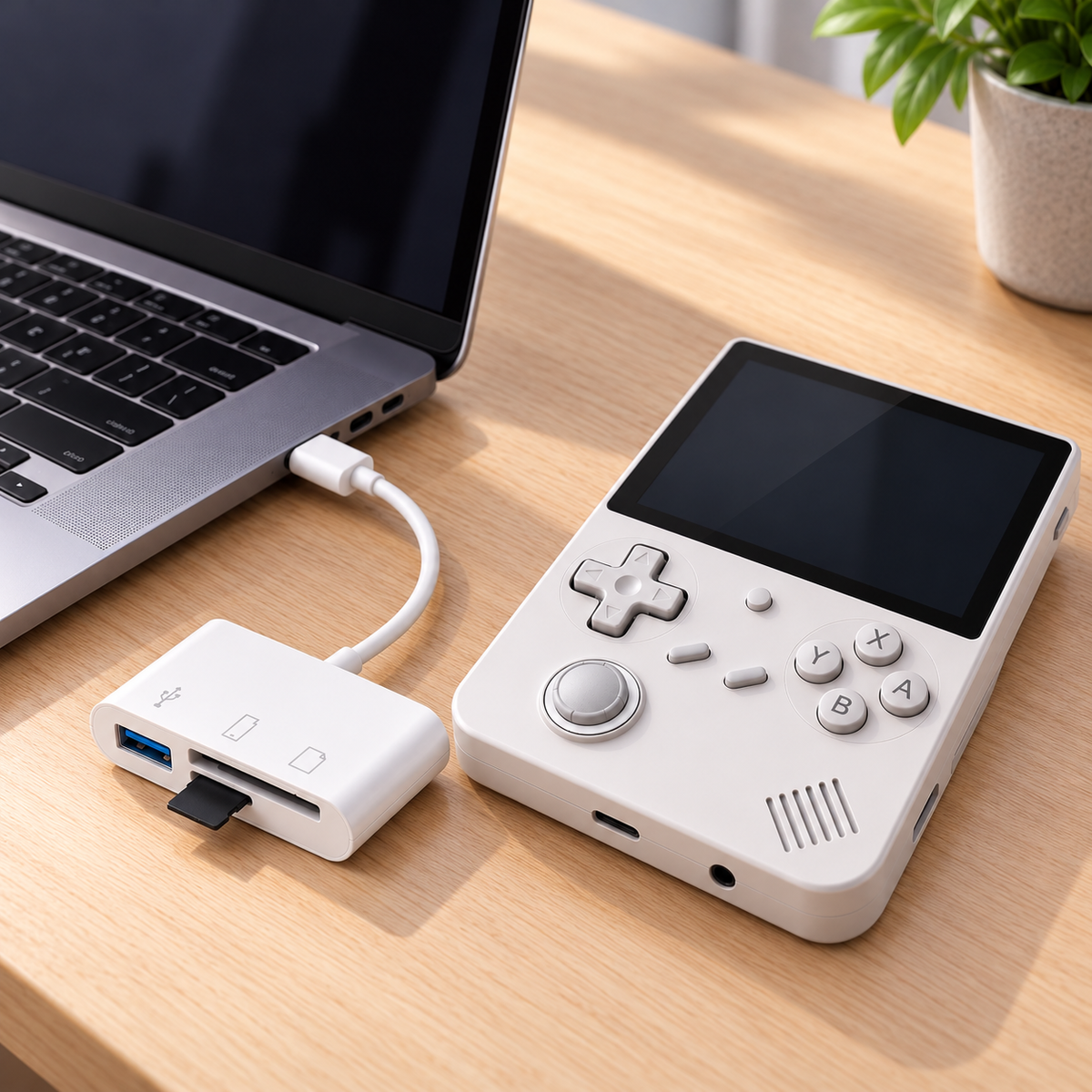
Add your own games
Your console arrives ready to play with thousands of retro games already installed. Want to grow your collection? All you need is a computer and a microSD card reader.
Before you start: what you'll need
- A computer (PC or Mac) and the microSD card reader.
- Your game files, downloaded beforehand and saved on your computer (for example in your “Downloads” folder).
- The right card: the one that came with the console, in the slot marked TF1. That's the one holding your games. You don't need any other card.
The 6 steps, one by one
- 1
Turn the console off completely
Quit the game you're playing, then turn off the console. Wait until the screen is completely black.
- 2
Remove the TF1 card
On the bottom of the console, find the slot marked TF1. Gently press the card to release it, then take it out.
- 3
Plug it into your computer
Slide the card into the small microSD slot of the reader, then plug in the reader.
⚠️ Never format the card. If your computer asks, click Cancel.
- 4
Open the “Roms” folder
It contains one folder per original console: GB (Game Boy), GBA (Game Boy Advance), FC (NES), SFC (Super Nintendo), MD (Sega Genesis)…
- 5
Transfer your games
Find the game files you downloaded beforehand on your computer. Drag each file into the folder of its original console: a Game Boy Advance game goes in “GBA”, a Super Nintendo game in “SFC”. Wait for the copy to finish.
- 6
Eject, put the card back and play
Eject the card from your computer, put it back in the TF1 slot and turn on the console: your new games show up automatically.
Golden rules to keep everything safe
- Never format the TF1 card. It also holds the console's system. If your computer asks, click “Cancel”.
- Don't delete, move or rename any existing folder. Just add your games to the right folders.
- Never remove the card while the console is on, or while files are copying on your computer.
- Always eject the card before unplugging it from your computer, so the files don't get damaged.
- Back up the card to your computer from time to time: your saved games will stay safe.

Don't have the console yet?
RetroPlay Pro™ - Anbernic
$139.00$129.90
- Thousands of retro games preloaded
- 4-inch laminated screen, premium build
- 2-year warranty
Your questions
Will it work with my computer?
Yes, with PCs (Windows) and Macs. Plug it in via USB-C on recent computers, or with the included USB-A adapter on older models.
Do I need to install any software?
No. The card shows up automatically like a USB drive: just drag your files over.
My computer asks to format the card. What should I do?
Click “Cancel”. This is normal: the card also holds the console's system, which your computer can't read. Never format it, just open the drive that contains the “Roms” folder.
Do I need to buy a microSD card?
No, the 64 GB microSD card already comes with the console, with the games preinstalled: the reader works with it right away. Want more space? You can add a second microSD card in the console's TF2 slot (up to 512 GB total) and fill it with this same reader.
How long does shipping take?
7 to 9 business days in the United States, with free shipping. A tracking number is sent to you by email.